 Chrome Extension
Dead Pixel Test Chrome Extension
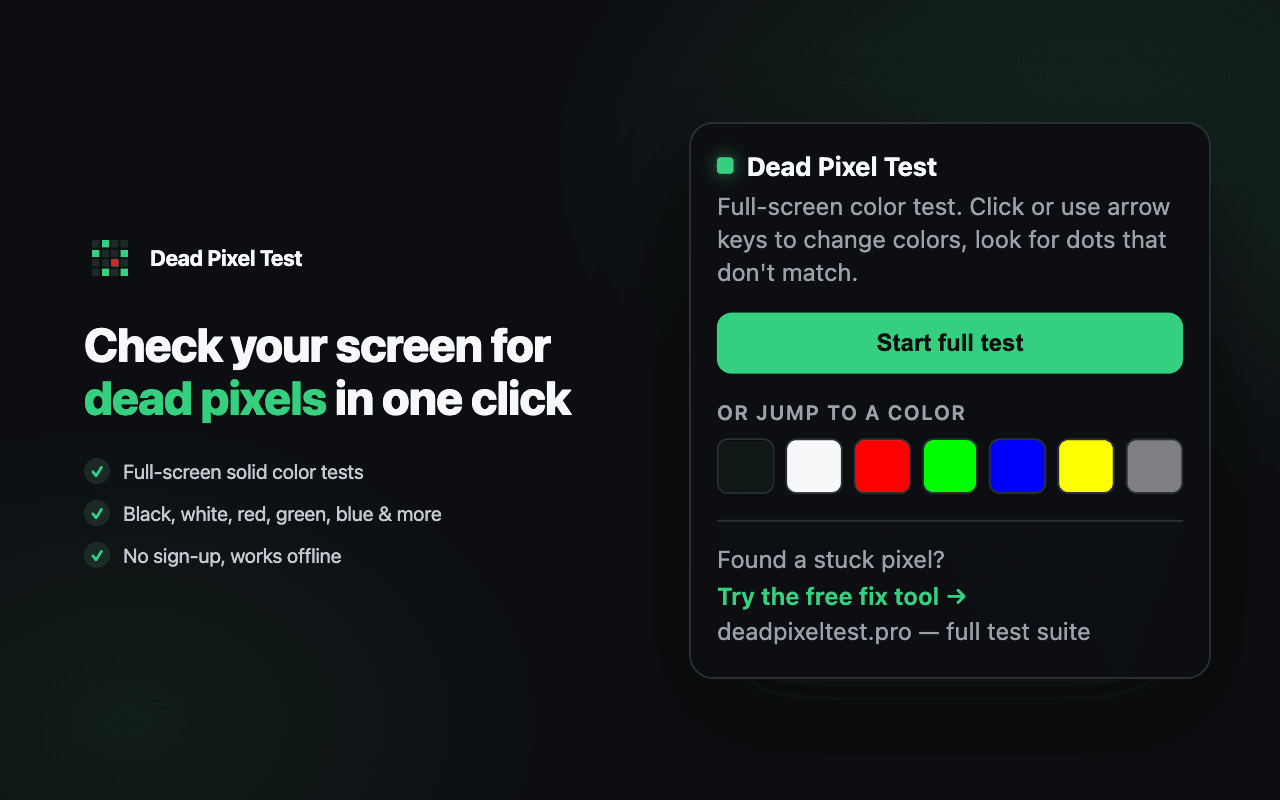
The dead pixel test, one click from your toolbar. Full-screen solid color tests to find dead and stuck pixels on any monitor, laptop, or external display — no permissions, no data collection, and it works offline.
What it does
The extension turns your entire screen into a solid block of color so defective pixels have nowhere to hide. A dot that stays dark on every color is a dead pixel; a dot frozen on red, green, or blue is a stuck pixel — and stuck pixels can often be revived with the free fix tool.
What's in the extension
7 test colors
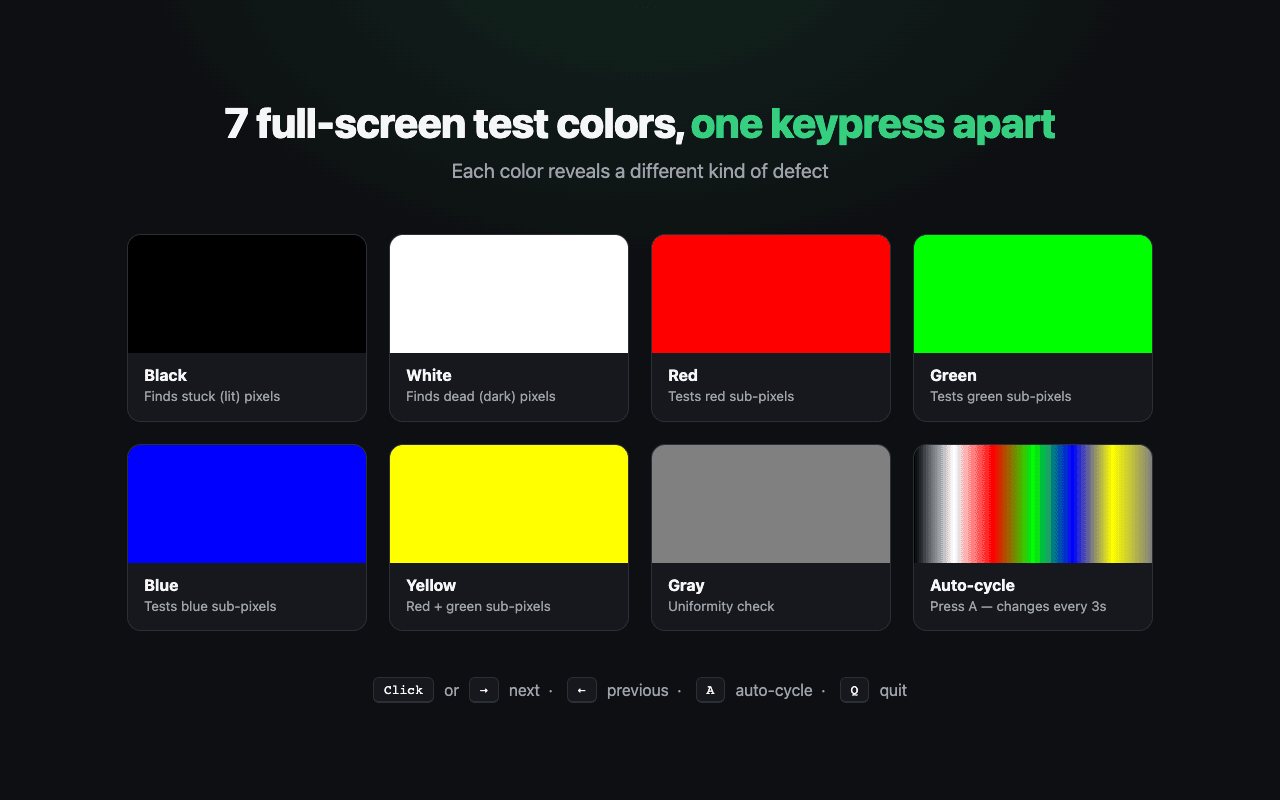
Black, white, red, green, blue, yellow, and gray — each reveals a different defect type.
One-click fullscreen
Opens straight into a full-screen test window. No setup, no page load.
Auto-cycle mode
Press A and colors change every 3 seconds while you inspect the panel.
Keyboard control
Arrow keys step through colors, Esc shows help, Q quits the test.
Zero permissions
The extension requests no Chrome permissions and collects no data at all.
Works offline
Colors are generated locally — test a laptop on a train or a PC with no network.
How do I test my screen with the extension?
- 1.Clean your screen first — dust is the most common false positive and looks exactly like a dead pixel.
- 2.Click the extension icon and hit Start full test. Your screen goes fullscreen black.
- 3.Click or press → to step through all 7 colors, scanning the whole panel on each. Press A for hands-free auto-cycle.
- 4.Any dot that doesn't match the background is a pixel defect. White reveals dead (dark) pixels, black reveals stuck (lit) pixels, and red/green/blue isolate each sub-pixel.
- 5.Found a stuck pixel? Head to the fix tool — rapid color cycling revives many stuck pixels in 10–20 minutes.
Privacy: zero permissions, zero data
The extension requests no Chrome permissions. It cannot read your browsing history, see your tabs, or access website data — Chrome shows no warning on install because there is nothing to warn about. It contains no analytics or tracking code and collects no data whatsoever.
Frequently asked questions
Is the Dead Pixel Test extension free?
Yes. The extension is completely free, with no sign-up, no ads inside the tool, and no in-app purchases. It is built by DeadPixelTest.pro, the free online dead pixel test site.
What permissions does the extension need?
None. The extension requests zero Chrome permissions — it cannot read your browsing history, see other tabs, or access any website data. It only opens its own full-screen color test page, and it collects no data.
How is the extension different from the website test?
Same test, faster access. The extension runs the full-screen color test locally from your toolbar — one click, works offline, no page load. The website adds the extras: the stuck pixel fix tool, warranty guides, and device-specific test pages.
Does the extension work offline?
Yes. All test colors are generated locally in your browser, so the test works with no internet connection. You only need to be online for the optional links back to the fix tool and guides on deadpixeltest.pro.
Can the extension fix a stuck pixel?
The extension is a detector — it finds dead and stuck pixels. To attempt a repair, use the free fix tool at deadpixeltest.pro/fix/, which rapidly cycles colors over the stuck pixel for 10–20 minutes. Stuck (colored) pixels often recover; truly dead (black) pixels cannot be fixed by software.
Extension support →
Something not working? Report a bug or ask a question.
Online dead pixel test →
No install needed — run the same test directly in your browser.